100% Security
Instant Download 24/7
10+ Years of Service

Need Some Help?

All orders are provided by download and immediately upon ordering. More questions? If we're online, reach our to us on the Store Live chat located bottom right. Also see Questions and Answers. If we're offline, contact our Support team from the Contact Us page.

0 Reviews
$19.95
$59.95
Save 67%

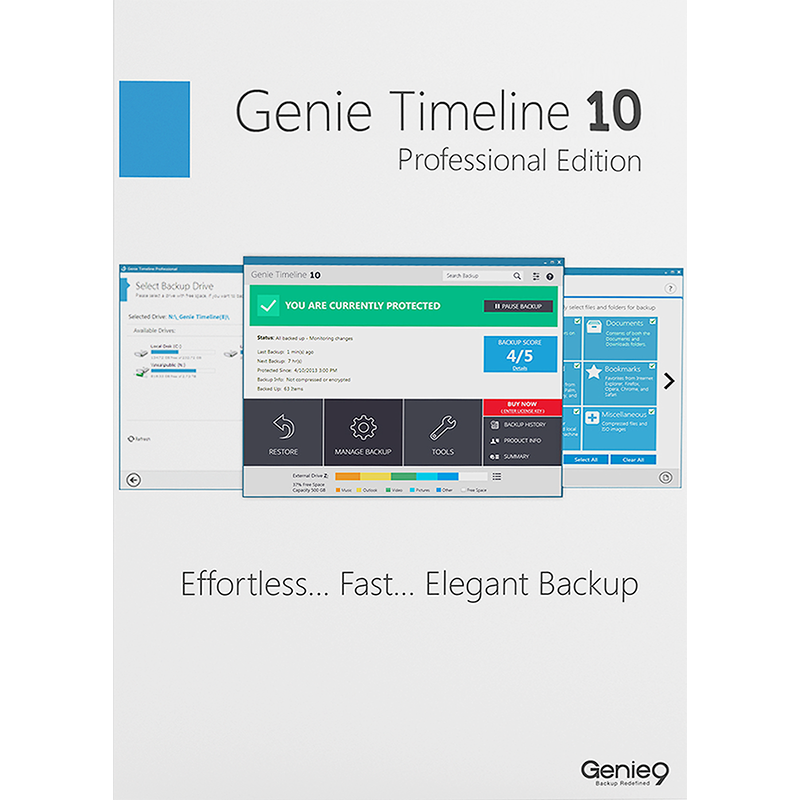
Genie Timeline Professional 10

Includes a 1-PC, non-expiring lifetime license

Offer Ends

Need Some Help?

All orders are provided by download and immediately upon ordering. More questions? If we're online, reach our to us on the Store Live chat located bottom right. Also see Questions and Answers. If we're offline, contact our Support team from the Contact Us page.

+ login to earn points
Platform
Windows 10
Windows 11
Windows 7 (32 bit)
Windows 7 (64 bit)
Windows 8
Windows Vista
Windows XP
Version
10
Manufacturer
Twitter
Last Updated
28 February 2026
Download Size
13.00 MB

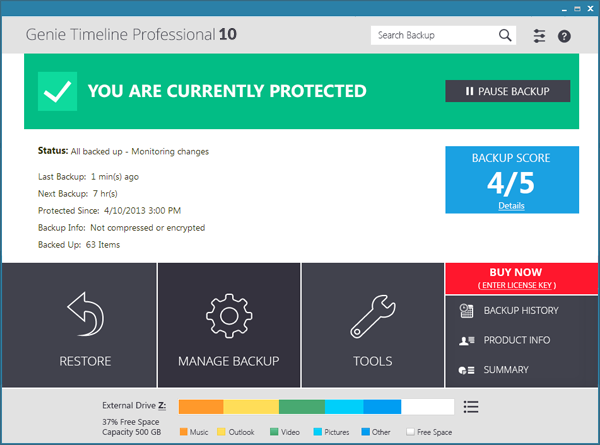
Genie Timeline Professional 10 is an exceptionally easy-to-use tool which takes the hassles out of backups.

Defining your backup job can be as easy as choosing a destination drive, and the type of files you'd like to back up (Office documents, pictures, emails, music and so on). You can optionally tell the program to back up particular files and folders, as well, but then that's it. There's no need to specify a destination folder or file name, set a schedule or browse through page after page of complicated settings: Genie Timeline handles everything itself.

Once this is all set up, your life gets even easier. Genie Timeline Professional 10 runs in the background, looking for files to back up. It notices when you add new pictures from your camera, say, or edit some documents. And then, when your PC is idle, the program will copy the new files to your backup drive (it will even resume the backup later if you close your system down, or reboot).

If you want to recover a particular file, or set of files, then the restore options make it very easy. Not only can you recover the last version of a file - the one you were working on last night and accidentally deleted, say - but you might also be able to recover the document as it was last week, maybe even last month. And that's because Genie Timeline Professional 10 backs up multiple versions of every file, so you can always go back in time to choose the particular copy you need.

There's even a Disaster Recovery option, which will back up your system folders. Use this, and if Windows is corrupted, say, and your PC won't boot, then you can start it from a Genie Timeline recovery disc, restore your backup and get everything working normally again.

And if you're an experienced Windows user and are thinking this sounds a little too basic, don't worry, there are some useful configuration options available for those who need them.

The program supports include and exclude folders, for instance, allowing you to include or exclude specific file types or folders from the backup (there's even regular expression support for extra power). 

Support for deduplication (backing up only one copy of duplicate files) saves space and improves backup speeds.

You can encrypt backups to protect sensitive documents, and schedule backup jobs if the automatic option isn't convenient.

Genie Timeline Professional 10 takes the program even further, with a range of useful backup tools and controls. This includes a Recycle Bin helps you see and manage files you've backed up, but are currently deleted from your computer. You also have the option to encrypt backup file names helps to preserve your privacy. A Backup History dialog shows you what Genie Timeline has been doing recently, whilst you can now keep every version in your backup, if you like (no more auto-purge). A new "Import Backup" option means you can import your backup on a new PC and carry on where you left off, plus there are improvements to the interface, disaster recovery, email notifications and more.

Genie Timeline Professional 10 ships with a 1-PC, non-expiring lifetime license.

Review by Mike Williams.

Performance Issues?

Most system performance issues are often a result of other software clashing with your brand new software. For instance, security software can clash with a background process, such as a system maintenance tool or defragmentation software. Another cause of system slowdown, is a result of two software applications performing a similar task. As an example, Windows includes a firewall switched on as a default. Your new security suite is likely to include a firewall. You only need one firewall running. In this example, try turning off your system firewall.

Uninstalling Your New Software

Occasionally you may need to either temporarily or permanently remove your new software.

On a Windows computer, go to the Control Panel and choose Programs and Features. Locate the program within the list, then click it to highlight it. Finally, click the Uninstall button at the top of the list and follow the instructions to remove the program from your PC.

On an Apple Mac computer, using Finder, locate the Applications folder. Within the Applications folder, find the name of the application you wish to remove. Simply drag the icon to your Trash icon in your dock. Empty the Trash to remove the files from your computer.

Still Having Problems?

If you cannot solve your system performance issues or are struggling to remove your software, we advise contacting the software manufacturer. If you placed an order, see the section in the order which states Support options. Alternatively, go to the Contact Us page to contact store support directly.

Frequently Asked Questions

Find quick answers to the most common questions about our services and platform

How Do I Order Software?
Simply select the software you want to order by clicking the "Buy Now" button or, where the option exists, clicking on "Upgrade". The upgrade option enables you to upgrade from a previous version of the software. When you click "Buy Now" you will be taken to your shopping cart, powered by Cleverbridge, where you can choose a payment option and then receive your download and serial code within seconds, after making your payment.
What Is The Extended Download Insurance?
When you order software online, you receive a digital download and a serial code by email. You normally have 30 days from placing the order to download your software, if you need to download again in the future. You can choose to extend this to two years, enabling you to login to your account and find your download, serial code(s) and your original invoice. Ideal if you need to re-install your software, suffer from a system crash or buy a new PC. Simply had to the "My Account" section on this store - or any one of our worldwide stores - to access previous orders.
Do I Need A Backup CD?
No, although some people like to receive a copy of their software on a CD which they can store indefinitely. We provide a backup CD for some applications in the store. For example, we can provide an official colour booklet and installation/backup CD for AVG and Kaspersky software ordered through the store. Some software suppliers, such as Nitro PDF and Paragon Software, will supply you directly with a backup CD if you include this with your order.
Why Are Some Prices Dynamic?
If you are based in New Zealand and you see prices in NZD, you may see a different price in your checkout than we advertise in the store. There's a good reason for this - software suppliers set their prices in USD, GBP and EUR, with NZD and other prices calculated based on the exchange rate and often between USD and NZD. Therefore some prices may be slightly cheaper or more expensive than the advertised price as the prices in the checkout are calculated, on-the-fly, from USD. This does not apply to customers in the EU, UK, US, Canada and Australia.
Why Was My Card Declined?
In most instances this will be due to fraud protection from your credit card provider. Although you have protection when you purchase goods, online, through your credit card, your company may decline a large order or an order made through an online store for the first time. If your card is declined, we suggest you speak with your card provider and/or your bank. You can also pay through PayPal, wire transfer or other payment formats.
Can I Ask For A Refund?
We strongly suggest you download and test trial software before placing your order. Trial software is provided to enable you to determine whether it's applicable for your system and meets your requirements. Once you are happy with your trial software, place an order. Digital downloadable software often cannot be refunded unless the order was placed in error. Activated software cannot be refunded as the code becomes the property of the customer and cannot be resold or reused. If you ordered in error or there is another problem with your order, contact PayPro directly for a refund.
Who Keeps Our User/Order Information?
Your transaction is between yourself and e-commerce providers PayPro. PayPro will NEVER re-use your information, pass on to a third party and will not contact you unless you contact them with a query. Your credit card information is not kept on file and is not stored by any third party. If you ordered Extended Download Insurance with your order, we retain basic information about your order on our secure server. This includes your name, email address (required to access your account), serial codes ordered and download links to your software. No-one has access to this information apart from yourself. This information is only available once you have registered your account using the email address you used to place the order.

Write a review

Find What You Need!
Payment Methods
Trusted Partners
Norton Avast Software McAfee Bitdefender Kaspersky Microsoft
100% Security
Instant Download 24/7
10+ Years of Service